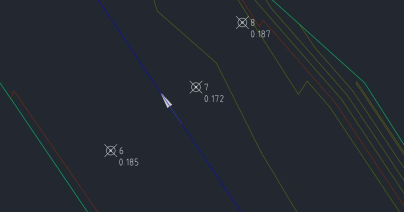
# TSS Pavment Conformance Report
Report showing the difference to design of surveyed points.
A routine has been written for Civil 3D to generate a Pavement Conformance Report using TSS. This will standardise our output for these formats and make it easier to generate these types of reports.
It can be completed using 3 different inputs:
- AsBuilt Points as a points or blocks within a DWG
- Cogo Points of the AsBuilt surveyed points in a point group within a DWG
- A CSV (PENZD format) of the surveyed points.
Within the DWG you will need a Surface and an Alignment, as well as the AsBuilt data within the previous formats.
Type TSS then within the Reports Tab select PAVEMENT CONFORMANCE button
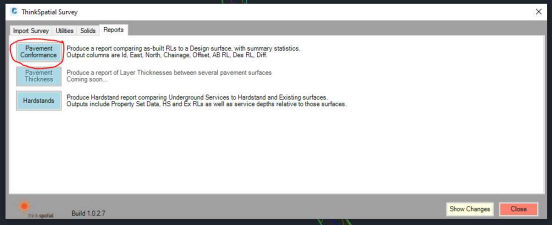
A new box will then appear, work from Top to Bottom of this Box.
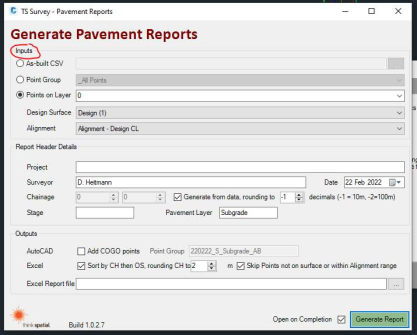
# INPUT
As previously stated you will need to have your AsBuilt Data within either
- CSV
- COGO points within the DWG or
- as Points on a Specific Layer within the DWG.
As-Built CSV you will need to navigate to where the CSV is located.
Point Group and Points on Layer are both Dropdown menus. Design Surface and Alignment are both Dropdown menus.
# REPORT HEADER DETAILS
If your drawing has been saved on OneDrive in a Project Folder, it will generate some of this data automatically, however this can be updated to suit.
# OUTPUTS
Check Add COGO Points if you would like them to be added to the current drawing. It will add them to a point group and is useful if you need to create a plan to go with the points.
Check Sort by CH then OS, to arrange the report order so that the Points are ascending based on the Chainage but also read from left to right of the alignment. The rounding number keeps the points grouped.
Within the Excel Report file box, click the 3 dots and click the destination of where you would like the report exported.
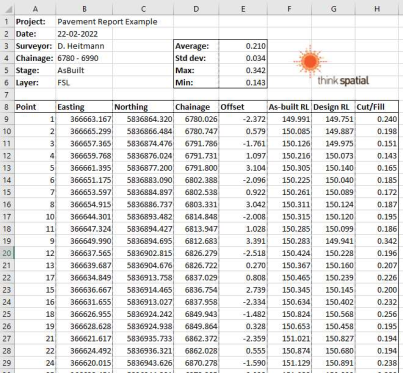
Finally click Generate Report Excel will open and the output will look like below.
Within the DWG it will generate COGO Points with the ID and the Description showing the difference to Surface.