
# Office Processing
Link to Form for TSS Improvements and Errors (opens new window)
# Output from the Controller
Once all features have been captured, the job needs to be exported.
This can be done by opening the job menu, highlighting the job and pressing ‘Export’ in the lower ribbon. The following screen shall appear.
Use the settings below and press export.
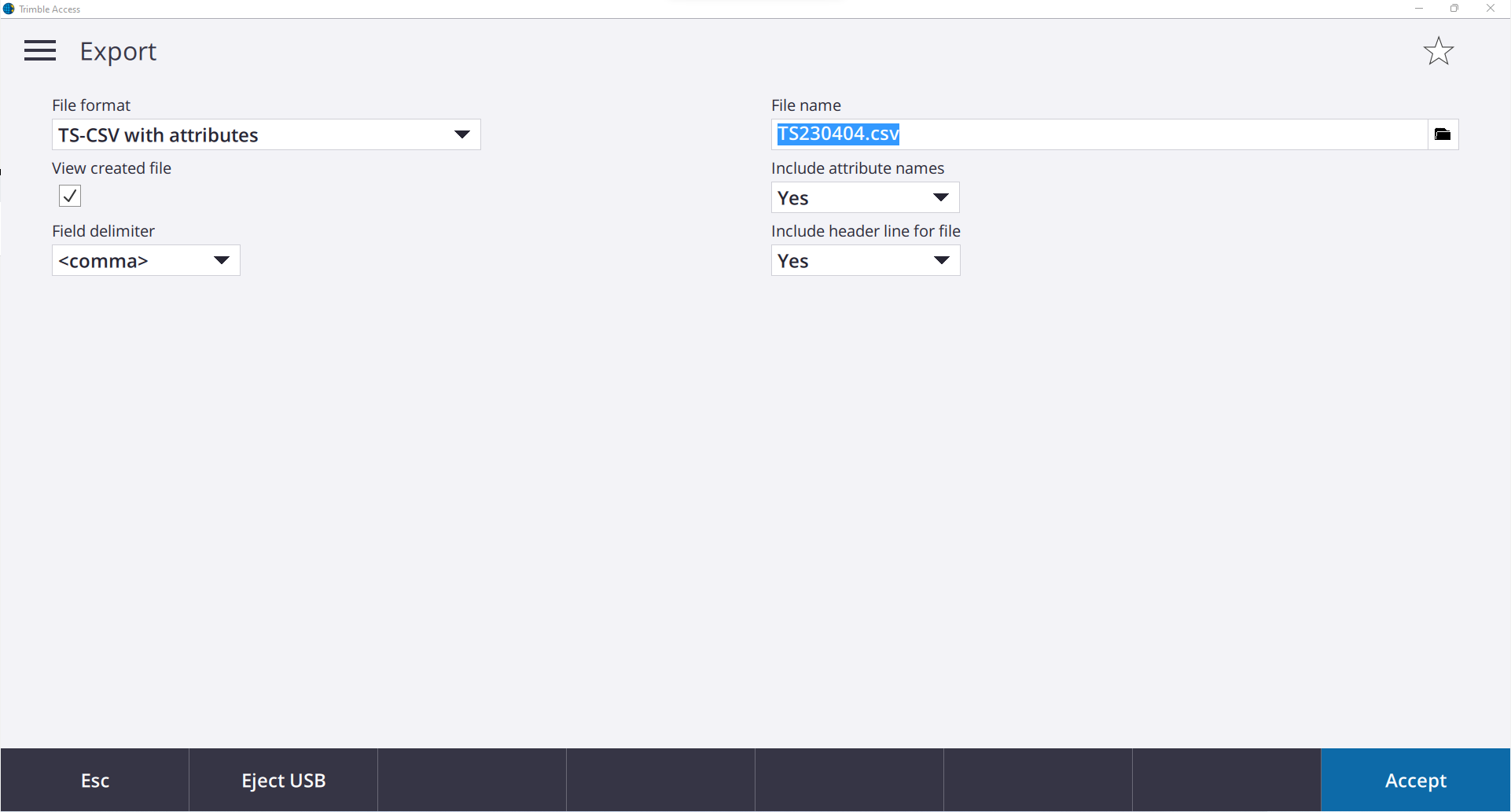
It will open the exported file in Microsoft Excel. Save the file to the appropriate directory. For reference the .csv should look similar to the example below.
Format - ID, Easting, Northing, RL, Code, Attribute Title, User Entered Att., Att. Title, User Entered Att., etc
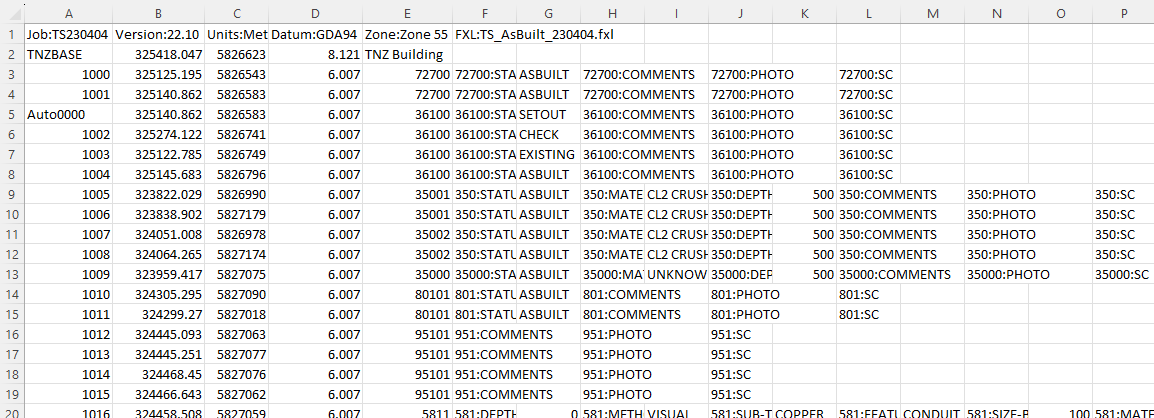
This is the required format to use within Civil 3D. The first line defines the datum and the codelist used for the survey. The following lines define the coordinates and attributes recorded in the field.
Remove any station, control or staked out coordinates which are populated throughout the CSV.
DANGER
Pole height errors should be amended when found in the field, these can be missed while processing.
Copy the output CSV and the field photos folder into the locations below: The CSV should be named as INITIALSYYMMDD.csv as it is used to populate the Source attribute of the data, For Example - DH220110.csv
# RAW Processed Data
D:\ThinkSpatial\Job Number - Description \04 WorkingFolder\04.99 RawSurveyData\INITIALS\YYMMDD
This folder should contain:
- JOB from the controller
- CSV export from the controller
- Photos folder from the controller
# Feature Survey File Location
D:\ThinkSpatial\Job Number - Description\02 SiteWide\02.01 FeatureSurvey\02.01.P00 FS Working Files
# Utilities\Services File Location
D:\ThinkSpatial\Job Number - Description \04 WorkingFolder\04.05 Services\04.05.P00 Service Pickups
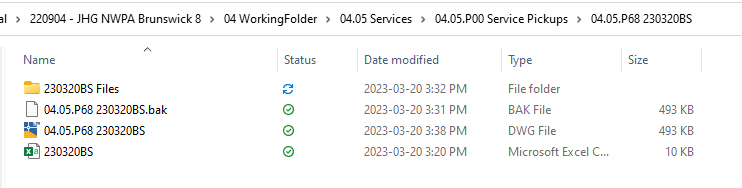
Before processing your processed folder will have a CSV and subsequent matching folder. After it is processed there will be an additional DWG which contains the processed data. See below for an example output.
# Loading TSS into AutoCAD
TSS is stored and updated in the following locations for each version of AutoCAD.
DETAILS
ACAD 2022
D:\ThinkSpatial\General - Admin\10 Operations\10.01 CAD\10.01.02 Automation\TSSurvey\AC2022
ACAD 2023
D:\ThinkSpatial\General - Admin\10 Operations\10.01 CAD\10.01.02 Automation\TSSurvey\AC2023
Within the applicable folder there is a file called acad.lsp, COPY this file into the folder below for the version of AutoCAD you are using.
DETAILS
ACAD 2022
C:\Program Files\Autodesk\AutoCAD 2022\Support
ACAD 2023
C:\Program Files\Autodesk\AutoCAD 2023\Support
Now upon startup, you can type TSS and it will load automatically. This is the preferred method of loading TSS as it ensures you will be using the most recent version of TSS.
# Office Processing - Utilities/AsBuilt and Feature Survey
Within the latest TSS build the processing has been made easier. It has been rebuilt to handle multiple Property Set Data tables which is where line attributes are stored.
Open any DWG template file and type TSS. Within the first page select run TSS and double click on the CSV above.
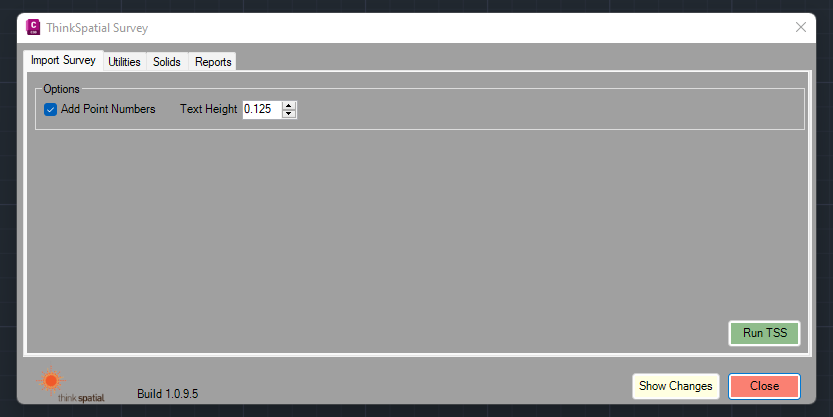
At this point there are several QA process running in the background of TSS
- Assign _ID_s as PSD for each Object
- Populate SOURCE as PSD for each table
- Checks that all the attributes for each line string are the same
- Relayers all Non Utility layers to include Status suffix as per surveyed attribute
- Utility Specific - Assigns Quality based on locate/survey method
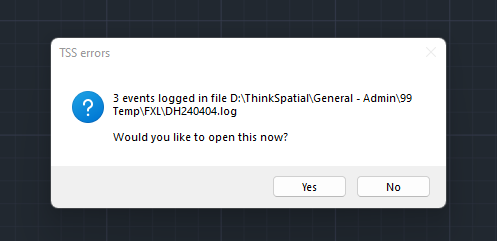
You will be prompted with a log/txt file outlining lines that do not conform with the checks to prompt the user to inspect these lines or points.
The DWG will now show all strings and points surveyed.
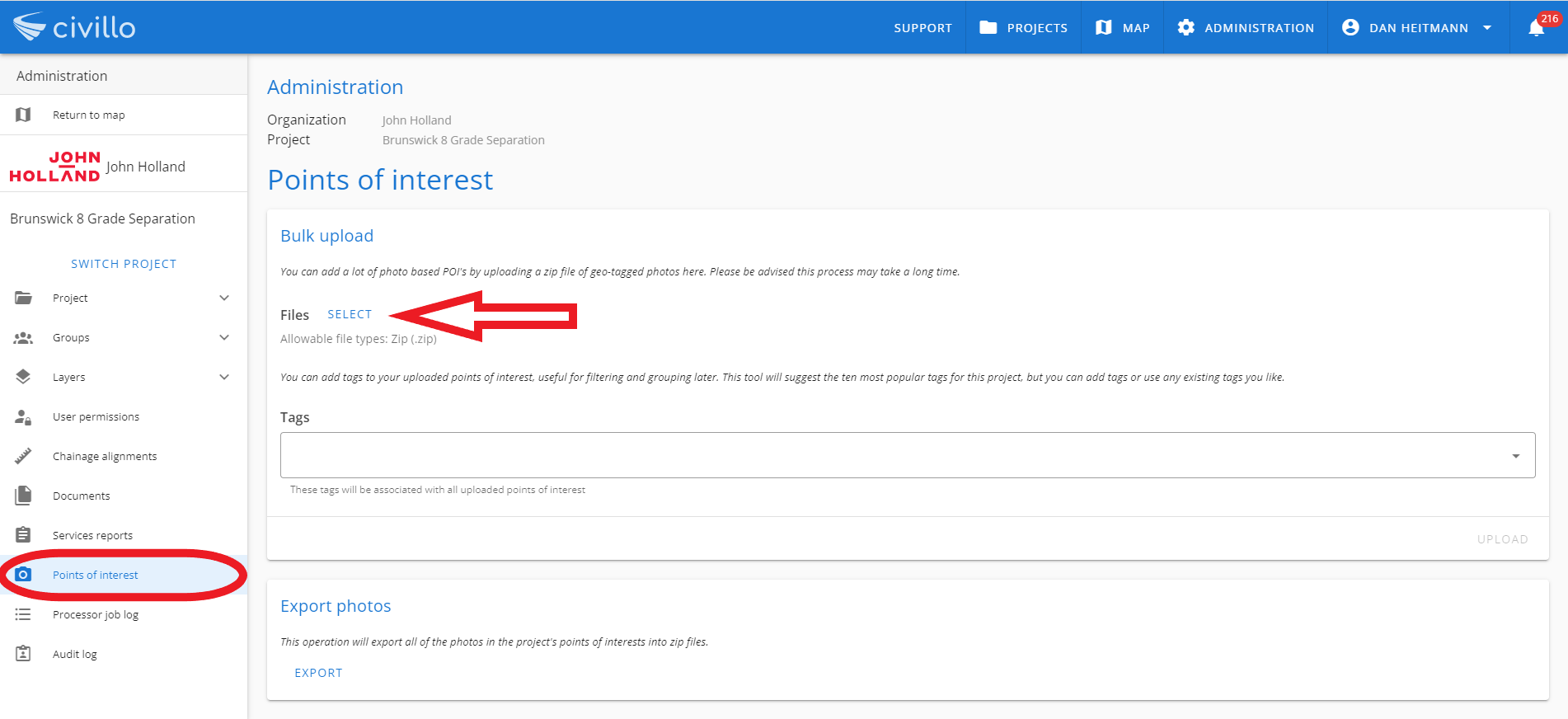
In the background outside of AutoCAD, a ZIP folder will have been created if any photos were taken and stored as attributes. The zipfolder takes the surveyed coordinate and attaches this as EXIF data to the photo so that it can be uploaded as Civillo Points of Interest (opens new window)
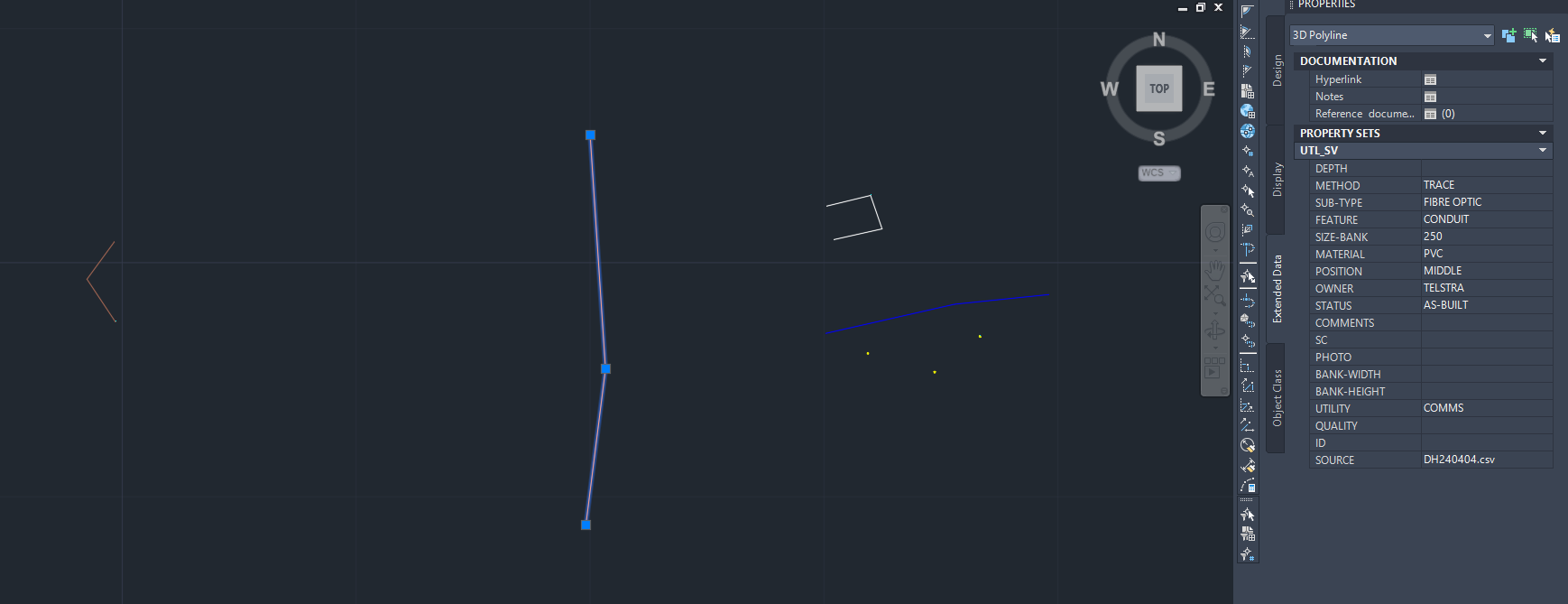
Within AutoCAD you will need make changes where applicable. Attribute data is now stored only as Property Set Data (PSD). It can be found by opening the properties panel then selecting the Extended Data tab.
WARNING
Lines that contain PSD will lose PSD when broken or trimmed using the standard AutoCAD commands.
- Where lines contain attributes you will need to retain use TSBREAK or TSCOPYOD commands so that attributed data is not removed. Further details can be found here (opens new window)
TIP
- Utility Specific - Use multileaders and text to assist the utility data manager to integrate your work into the service master. You can external reference the service master to add more context. Type XREF and use the latest version on Civillo or within the project directory.
# Utility Specific Revclouding
Revcloud the areas which you have worked on. This should be on layer _Update_YYMMDDInitals, this layer has partially been created in the template. You will just need to amend the date and Initials portion of the layer name and set to current.
Type LAYER and open the LAYER PROPERTIES MANAGER window.
Select layer, _UPDATE_23MMDDInitials and press F2 to rename to the applicable month, date and initials.
Double click on the renamed layer an it will now be current. To add Revcloud, Type REVCLOUD and draw around the service pickup areas.
# VIDEO - Processing Survey Data
How To Processing Survey Data Video (opens new window)
# Import AsBuilt Data into Master File
Best practice is to create a Master File from the first AsBuilt Survey Pickup for the area as this will contain all the base PSD tables.
Type TSS and navigate to the Utilities Tab.
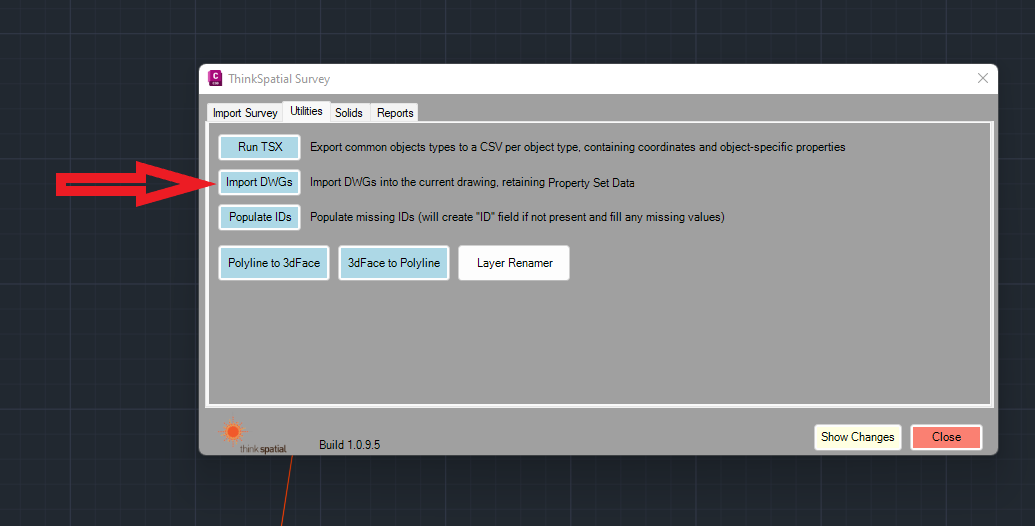
Select the DWG that you wish to import from the dialogue box.
When importing data into the master, each AutoCAD object will have the Object ID updated so that they are unique for the master. This works by having a counter in the background of the CAD file known as LastID (stored in DWGPROPS->Custom). This ID field is predominantly used for reporting features built into TSS, in particular the Hardstand Service Report.
TIP
Upon using TSS IMPORT, TSS checks that the PSD tables within the Master match the PSD Tables of the AsBuilt Master
Potentially there will be issues dealing with multiple datasets surveyed using the old codelist as there was only 1 PSD table.
The latest codelists have been created so this should not happen although when dealing with survey data from previous codelists/previous TSS versions we anticipate there will be issues. The simplest way to fix this problem is to strip the OLD property data table known as UTILITIES.